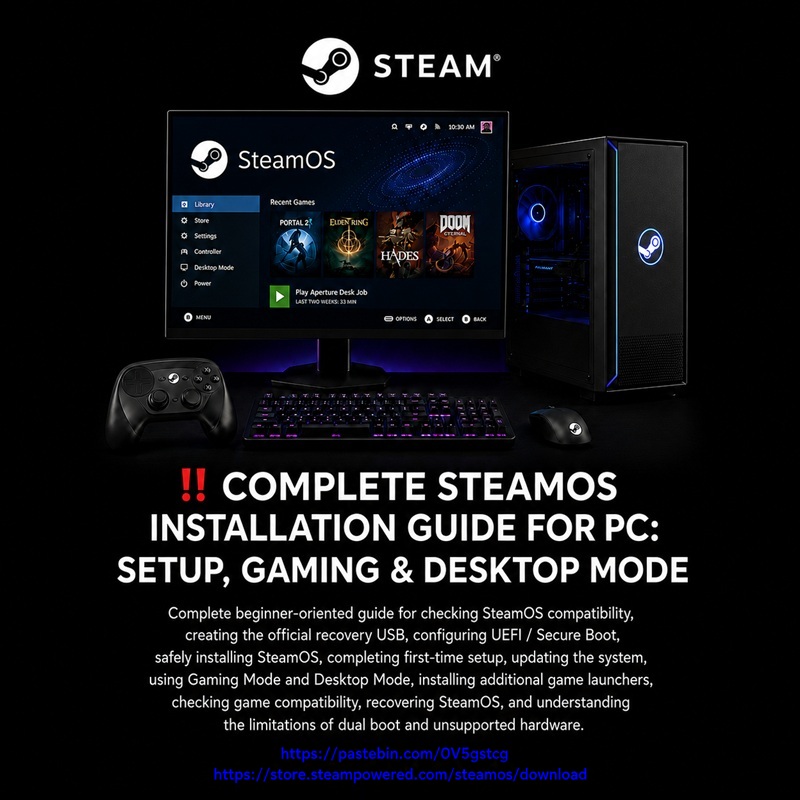

2026 08 23: COMPLETE STEAMOS INSTALLATION GUIDE FOR PC: SETUP, GAMING & DESKTOP MODE
———————————
———————————
‼️‼️ https://pastebin.com/u/LeGamerInfini
‼️‼️ LAST UPDATE 2026 08 23
‼️‼️ THANK YOU VERY MUCH.
———————————
———————————
–
‼️ COMPLETE STEAMOS INSTALLATION GUIDE FOR PC: SETUP, GAMING & DESKTOP MODE ‼️THANK YOU‼️
–
———————————
———————————
–
—
–
– SUBTITLE:
–
– Comprehensive step-by-step instructions covering hardware compatibility, recovery USB creation, BIOS/UEFI setup, system installation, first-time configuration, updates, Gaming and Desktop Mode navigation, non-Steam launcher integration, anti-cheat limits, and multi-drive dual-boot procedures.
–
– Complete beginner-oriented guide for checking SteamOS compatibility, creating the official recovery USB, configuring UEFI / Secure Boot, safely installing SteamOS, completing first-time setup, updating the system, using Gaming Mode and Desktop Mode, installing additional game launchers, checking game compatibility, recovering SteamOS, and understanding the limitations of dual boot and unsupported hardware.
–
—
–
———————————
———————————
———————————
———————————
–
—
–
– INTRODUCTION:
–
– This document serves as an exhaustive, beginner-friendly manual designed to guide users through the entire lifecycle of deploying SteamOS on desktop PCs and handheld hardware. The primary objective is to provide detailed instructions for checking system compatibility, creating official recovery installation media, configuring motherboard settings, performing safe disk erase operations, and setting up both Gaming Mode and the Arch Linux-based KDE Plasma Desktop Mode. It also provides essential guidance on managing non-Steam launchers (via Heroic Games Launcher and Flatpaks), navigating Proton compatibility and anti-cheat constraints, handling recovery procedures, and managing multi-drive dual-boot environments with Windows.
–
‼️ 2026 08 23 ‼️ STEAMOS INSTALLATION GUIDE: ARCH LINUX-BASED GAMING OS, DESKTOP MODE, APPLICATIONS, COMPATIBILITY & HARDWARE
–
—
–
– TABLE OF CONTENTS
–
– PART [01] — PREAMBLE
– PART [02] — DOWNLOAD AND INSTALLATION MEDIA
– PART [03] — ACCESSING DESKTOP MODE
– PART [04] — DESKTOP EXPERIENCE AND APPLICATIONS
– PART [05] — GAMING BEYOND STEAM
– PART [06] — TECHNICAL CHARACTERISTICS AND LIMITATIONS
– PART [07] — HARDWARE, INSTALLATION AND DUAL BOOT
– PART [08] — FINAL VERDICT
– PART [09] — REFERENCED VIDEOS
–
—
–
– PART [01] — PREAMBLE
–
– SteamOS is a free, gaming-focused operating system developed by Valve and based on Arch Linux. Its main interface is designed for controller-friendly gaming, but it also includes a full Desktop Mode based on KDE Plasma, allowing the system to be used for web browsing, file management, office work, software installation and other everyday computer tasks.
–
– SteamOS is appreciated for its console-like gaming experience, Valve-managed updates, stability and integrated support for Steam and Proton. Desktop Mode makes it possible to use the machine as a general-purpose Linux computer when needed.
–
– Official SteamOS download:
– https://store.steampowered.com/steamos/download
–
—
–
– PART [02] — DOWNLOAD AND INSTALLATION MEDIA
–
– The SteamOS download described in the source material is approximately 3 GB when compressed and about 8 GB after extraction. A USB flash drive of at least 16 GB is recommended.
–
– After downloading the SteamOS image, extract it if necessary, then write the image to the USB flash drive with a suitable imaging tool such as Rufus or balenaEtcher.
–
– Installation is performed from the bootable USB drive. The SteamOS installer erases the selected target drive and configures it as the SteamOS system disk, so the correct drive must be identified before confirming the installation.
–
– During first-time setup, SteamOS guides the user through basic configuration such as Wi-Fi, display settings and controller pairing.
–
—
–
– PART [03] — ACCESSING DESKTOP MODE
–
– To switch from Gaming Mode to Desktop Mode:
–
– press the Steam button on the device;
–
– or press the Home / Steam button on an external controller;
–
– open the Power menu;
–
– select “Switch to Desktop”.
–
– SteamOS then switches to the KDE Plasma desktop environment.
–
– To return to Gaming Mode:
–
– double-click the “Return to Gaming Mode” icon on the desktop;
–
– or restart the system from the desktop environment.
–
– Useful controls in Desktop Mode:
–
– right trackpad = mouse cursor;
–
– right trigger / R2 = left-click;
–
– Steam + X = on-screen keyboard.
–
—
–
– PART [04] — DESKTOP EXPERIENCE AND APPLICATIONS
–
– SteamOS Desktop Mode uses KDE Plasma and provides a familiar desktop layout with a taskbar, application menu and the Dolphin file manager. It can be used for many common tasks normally performed on Windows, macOS or a traditional Linux desktop.
–
– Applications should preferably be installed through the Discover software center and Flatpak / Flathub. This is especially important because SteamOS uses an immutable, read-only system design: system updates can replace the base system image, so direct system-level modifications may not persist.
–
– Flatpak applications are isolated from the base system and are therefore better suited to SteamOS updates.
–
– Everyday uses include:
–
– web browsing with browsers such as Firefox or Google Chrome;
–
– communication applications such as Discord;
–
– office work with LibreOffice;
–
– spreadsheets and word processing;
–
– file management;
–
– printer installation through System Settings;
–
– color printing and other normal desktop tasks.
–
– Hardware-capable systems can also run local AI software such as LM Studio. Depending on the hardware, SteamOS can be used for local AI models, image analysis or home-network automation tasks.
–
– One of the referenced reviews also reports substantially lower memory use than Windows in its tested configuration, although exact RAM savings depend on the hardware, applications and comparison conditions.
–
—
–
– PART [05] — GAMING BEYOND STEAM
–
– SteamOS integrates Valve’s Proton compatibility layer, allowing many Windows games to run on Linux.
–
– If a game has compatibility problems, users can:
–
– open the game’s Properties;
–
– enable compatibility settings;
–
– select another Proton version;
–
– or use Proton Experimental when appropriate.
–
– The Steam library interface allows games to be installed, categorized, updated and removed with a controller-friendly interface.
–
– For games outside Steam, Heroic Games Launcher can manage libraries from:
–
– Epic Games Store;
–
– GOG;
–
– Amazon Prime Gaming.
–
– Heroic Games Launcher can manage compatibility settings and can add games to the Steam library for a more unified experience.
–
– For SteamOS, the recommended method is to install Heroic Games Launcher as a Flatpak from Discover.
–
– Other Windows launchers, including Ubisoft Connect and the EA App, can sometimes be installed manually by adding their Windows installer files as Non-Steam Games and selecting Proton compatibility.
–
– Some games or configurations may still require terminal commands or manual configuration-file changes. AI tools can help explain these procedures, but commands should always be reviewed carefully before use.
–
—
–
– PART [06] — TECHNICAL CHARACTERISTICS AND LIMITATIONS
–
– SteamOS uses an immutable system architecture designed to improve stability and simplify updates. The base operating system is largely read-only, so custom kernel drivers, direct system modifications and some system-level software may be lost or require additional work after updates.
–
– For this reason, Discover and Flatpak are generally the preferred methods for installing persistent desktop applications.
–
– Certain specialized applications or workflows may be less convenient than on a traditional Linux distribution. Examples mentioned in the source material include advanced video-editing workflows such as DaVinci Resolve and software requiring deep system-level customization.
–
– In these cases, distributions such as Ubuntu or Linux Mint may be more appropriate.
–
– Gaming compatibility is also not universal:
–
– some multiplayer games use anti-cheat systems that may not support Linux / Proton;
–
– some proprietary hardware utilities, including advanced RGB-control software, may lack native Linux support;
–
– OpenRGB can provide basic lighting control for some supported hardware.
–
– Users should regularly check Steam’s Downloads section and Settings → System for SteamOS and compatibility updates.
–
—
–
– PART [07] — HARDWARE, INSTALLATION AND DUAL BOOT
–
– According to the source material, SteamOS officially targets AMD Radeon hardware. Community solutions may exist for NVIDIA GPUs, but NVIDIA support should not be assumed to be officially supported on every SteamOS device or PC configuration.
–
– Before installation:
–
– verify that the target computer and GPU are compatible;
–
– back up important data;
–
– create the bootable SteamOS USB drive;
–
– identify the correct installation drive;
–
– remember that the installer erases the selected target drive.
–
– For dual boot with Windows, Secure Boot settings may require attention depending on the systems and hardware involved.
–
– For safety and easier maintenance, the source material recommends using two separate SSDs when dual-booting SteamOS and Windows.
–
—
–
– PART [08] — FINAL VERDICT
–
– SteamOS is primarily designed for gaming, but Desktop Mode makes it a capable general-purpose computer for many everyday tasks.
–
– Its strongest advantages are:
–
– controller-friendly Gaming Mode;
–
– Steam and Proton integration;
–
– KDE Plasma Desktop Mode;
–
– Valve-managed updates;
–
– Flatpak application support;
–
– strong suitability for living-room gaming PCs and console-style systems.
–
– Its main limitations are:
–
– immutable system design;
–
– reduced flexibility for deep system modifications;
–
– hardware-support restrictions;
–
– some anti-cheat incompatibilities;
–
– possible limitations with specialized professional software.
–
– For users whose priority is gaming and who also need web browsing, office work, media, file management and other normal desktop functions, SteamOS can be an effective dual-purpose system.
–
– Users who require extensive customization, specialized drivers or advanced professional applications may prefer a more traditional Linux distribution.
–
—
–
– PART [09] — REFERENCED VIDEOS
–
– VIDEO [01]
–
– Video ID: l6xBo957ts0
– Short Link: https://youtu.be/l6xBo957ts0
– Title: How to Switch to Desktop Mode on Steam Machine (with SteamOS)
– Channel: Sadeq E info
– Channel Videos Link: https://www.youtube.com/@sadeqeinfo/videos
–
– VIDEO [02]
–
– Video ID: OqkVACIARts
– Short Link: https://youtu.be/OqkVACIARts
– Title: SteamOS as a Desktop OS? Browsing, Office, Printing, Local LLM and More!
– Channel: Lon.TV (Lon Seidman)
– Channel Videos Link: https://www.youtube.com/@LonSeidman/videos
–
– VIDEO [03]
–
– Video ID: -wt68TJgHxg
– Short Link: https://youtu.be/-wt68TJgHxg
– Title: Is SteamOS Usable as a Desktop PC?
– Channel: PC Centric
– Channel Videos Link: https://www.youtube.com/@PcCentric/videos
–
– VIDEO [04]
–
– Video ID: 6ay6jXBYEEk
– Short Link: https://youtu.be/6ay6jXBYEEk
– Title: SteamOS on a Desktop PC Is Finally Here—and It’s Fantastic
– Channel: Learn Linux TV
– Channel Videos Link: https://www.youtube.com/@LearnLinuxTV/videos
–
—
–
– END OF INTRODUCTION.
–
—
–
———————————
———————————
———————————
———————————
–
—
–
– TUTORIAL:
–
—
–
‼️ COMPLETE STEAMOS INSTALLATION GUIDE FOR PC: SETUP, GAMING & DESKTOP MODE:
–
—
–
– TABLE OF CONTENTS
–
– PART [01] — WHAT STEAMOS IS
– PART [02] — CURRENT STEAMOS SUPPORT AND HARDWARE COMPATIBILITY
– PART [03] — WHAT YOU NEED BEFORE INSTALLATION
– PART [04] — BACKUPS AND DRIVE-SAFETY PRECAUTIONS
– PART [05] — DOWNLOAD THE OFFICIAL STEAMOS IMAGE
– PART [06] — CREATE THE STEAMOS USB DRIVE
– PART [07] — PREPARE THE BIOS / UEFI
– PART [08] — BOOT THE STEAMOS RECOVERY USB
– PART [09] — CHECK HARDWARE BEFORE ERASING THE TARGET DRIVE
– PART [10] — INSTALL STEAMOS
– PART [11] — FIRST BOOT AND INITIAL CONFIGURATION
– PART [12] — UPDATE STEAMOS
– PART [13] — GAMING MODE AND DESKTOP MODE
– PART [14] — INSTALL APPLICATIONS AND OTHER GAME LAUNCHERS
– PART [15] — PROTON, WINDOWS GAMES AND ANTI-CHEAT
– PART [16] — DUAL BOOT WITH WINDOWS
– PART [17] — RECOVERY AND REPAIR OPTIONS
– PART [18] — TROUBLESHOOTING
– PART [19] — FINAL CHECKLIST
– PART [20] — OFFICIAL AND USEFUL LINKS
– PART [21] — SOURCE TUTORIALS
–
—
–
– PART [01] — WHAT STEAMOS IS
–
– SteamOS is Valve’s Linux-based gaming operating system.
–
– It is based on Arch Linux and is designed to provide:
–
– a console-like Gaming Mode;
–
– controller-friendly navigation;
–
– integrated Steam updates;
–
– Proton compatibility for many Windows games;
–
– a KDE Plasma Desktop Mode;
–
– access to normal Linux applications through Desktop Mode.
–
– SteamOS uses an immutable / mostly read-only system design. This helps Valve deliver controlled system updates and improves consistency, but it also means that deep system-level modifications may not persist across updates.
–
– For ordinary desktop applications, Flatpak applications installed through Discover are generally preferable.
–
—
–
– PART [02] — CURRENT STEAMOS SUPPORT AND HARDWARE COMPATIBILITY
–
– At the last verification on 2026 08 22, Valve’s SteamOS support page listed the following as officially “Powered by SteamOS”:
–
– Steam Deck;
–
– Steam Machine;
–
– Lenovo Legion Go S.
–
– Valve also listed beta SteamOS support for:
–
– Lenovo Legion Go;
–
– ASUS ROG Ally;
–
– ASUS ROG Ally X;
–
– other AMD-powered handhelds;
–
– AMD discrete GPUs.
–
– Valve additionally states that SteamOS can be installed on other AMD-powered PCs beyond the officially Powered by SteamOS devices.
–
– IMPORTANT:
–
– Steam Support may have limited ability to solve hardware-specific problems on PCs that are not officially Powered by SteamOS.
–
– Recent SteamOS 3.8 updates have improved non-Deck compatibility, including newer Intel and AMD platforms and discrete-GPU memory management, but this does not mean every PC, GPU, Wi-Fi adapter, audio device or controller is guaranteed to work.
–
– At the time of this verification:
–
– latest stable release found in Valve’s release notes = SteamOS 3.8.16;
–
– later SteamOS 3.8.25 builds were available in the Beta / Preview channels.
–
– For beginners:
–
– use the Stable update channel after installation unless you specifically need a beta fix.
–
—
–
– PART [03] — WHAT YOU NEED BEFORE INSTALLATION
–
– You need:
–
– a compatible SteamOS device or AMD-powered PC;
–
– an 8 GB USB flash drive minimum;
–
– 16 GB or larger recommended for convenience;
–
– a Windows, macOS or Linux computer for creating the USB drive;
–
– Internet access;
–
– keyboard and mouse for a desktop PC;
–
– a controller if you intend to use the PC as a console;
–
– a complete backup of every file you want to keep.
–
– On Windows:
–
– use Rufus.
–
– On macOS:
–
– Valve recommends Balena Etcher.
–
– On Linux:
–
– Valve recommends Balena Etcher or provides a command-line method.
–
—
–
– PART [04] — BACKUPS AND DRIVE-SAFETY PRECAUTIONS
–
– WARNING:
–
– “Wipe Device & Install SteamOS” erases the target device.
–
– All user files, installed games, applications, partitions and operating systems on the selected target will be removed.
–
– Before beginning:
–
– back up every important file;
–
– verify that the backup can actually be opened;
–
– make sure you know which physical SSD or HDD will receive SteamOS;
–
– disconnect unnecessary external drives;
–
– do not keep backup drives attached during installation.
–
– MULTI-DRIVE DESKTOP SAFETY:
–
– If your PC contains several internal drives and only one should receive SteamOS, the safest beginner procedure is to temporarily disconnect or disable the non-target drives if this is practical for your hardware.
–
– This is especially useful if one of those drives contains Windows or irreplaceable data.
–
– Never assume a drive is correct based only on its size.
–
—
–
– PART [05] — DOWNLOAD THE OFFICIAL STEAMOS IMAGE
–
– Use Valve’s current SteamOS installation / repair page:
–
– https://help.steampowered.com/en/faqs/view/65B4-2AA3-5F37-4227
–
– Official SteamOS image / download page:
–
– https://store.steampowered.com/steamos/download/?ver=steamdeck
–
– Download the current SteamOS recovery image.
–
– IMPORTANT:
–
– Always use the current image supplied by Valve rather than relying on an old version number or an old third-party mirror.
–
—
–
– PART [06] — CREATE THE STEAMOS USB DRIVE
–
– WINDOWS — RUFUS:
–
– Official Rufus website:
–
– https://rufus.ie/
–
– 1] Insert the USB flash drive.
–
– 2] Open Rufus.
–
– 3] Verify that Device points to the correct USB flash drive.
–
– 4] Select the SteamOS recovery file downloaded from Valve.
–
– 5] Start the write operation.
–
– 6] Rufus will erase the USB flash drive.
–
– 7] Confirm only after checking the selected USB device.
–
– 8] Wait until Rufus finishes.
–
– 9] Select Close and safely eject the USB flash drive.
–
– IMPORTANT:
–
– Do not force normal Linux-ISO settings such as a manually chosen GPT / MBR layout if Rufus is writing the SteamOS recovery image directly.
–
– Follow the image-writing mode detected by Rufus.
–
– MACOS / LINUX — BALENA ETCHER:
–
– Official Balena Etcher website:
–
– https://etcher.balena.io/
–
– Select the SteamOS recovery image;
–
– select the USB flash drive;
–
– start flashing;
–
– wait until the write and verification process completes.
–
– LINUX COMMAND-LINE METHOD:
–
– Valve currently documents a command similar to:
–
– bzcat steamdeck-recovery-4.img.bz2 | sudo dd if=/dev/stdin of=/dev/sdX oflag=sync status=progress bs=128M
–
– IMPORTANT:
–
– /dev/sdX MUST be replaced with the correct USB device.
–
– Using the wrong device with dd can destroy data on another disk.
–
– Beginners should normally prefer Balena Etcher unless they are comfortable identifying Linux block devices.
–
– Additional beginner guide for bootable USB drives:
–
– https://pastebin.com/cNkPLyx2
–
—
–
– PART [07] — PREPARE THE BIOS / UEFI
–
– Shut down the SteamOS target PC.
–
– Insert the SteamOS USB flash drive.
–
– Enter the device’s BIOS / UEFI or one-time Boot Menu.
–
– Common PC keys include:
–
– Delete;
–
– F2;
–
– F7;
–
– F8;
–
– F11;
–
– F12;
–
– Esc.
–
– The exact key depends on the motherboard or device manufacturer.
–
– UEFI:
–
– Prefer the UEFI boot entry for the USB drive.
–
– SECURE BOOT:
–
– Valve states that most non-Steam Deck devices will need Secure Boot disabled to boot or re-image SteamOS from the USB recovery drive.
–
– Do not change unrelated firmware settings unnecessarily.
–
– WINDOWS / BITLOCKER WARNING:
–
– If Windows is installed on another drive and BitLocker / Device Encryption is enabled, firmware or Secure Boot changes can sometimes trigger a BitLocker recovery prompt.
–
– Before changing Secure Boot:
–
– make sure you have access to your BitLocker recovery key;
–
– record the current Secure Boot setting;
–
– avoid resetting unrelated Secure Boot keys or firmware settings.
–
– CSM / LEGACY:
–
– The source tutorial recommends disabling CSM / Legacy Boot.
–
– For a modern installation, UEFI boot is preferable, but do not blindly change firmware settings if the device already boots the SteamOS USB correctly in UEFI mode.
–
—
–
– PART [08] — BOOT THE STEAMOS RECOVERY USB
–
– 1] Power on the PC.
–
– 2] Open the one-time Boot Menu.
–
– 3] Select the UEFI entry corresponding to the SteamOS USB flash drive.
–
– 4] Wait while the recovery environment loads.
–
– Valve notes that the screen may remain dark for a short period while the recovery system starts.
–
– Once loaded, you should reach a desktop recovery environment.
–
—
–
– PART [09] — CHECK HARDWARE BEFORE ERASING THE TARGET DRIVE
–
– BEFORE launching the destructive installation:
–
– check that the display works correctly;
–
– check mouse and keyboard;
–
– check the controller if applicable;
–
– check Wi-Fi;
–
– check Ethernet if available;
–
– check audio if practical;
–
– verify that the expected storage device is detected.
–
– The source tutorials specifically recommend checking Wi-Fi before installation.
–
– This is a useful precaution:
–
– if no wireless networks appear, the Wi-Fi adapter may not be supported by the current recovery environment.
–
– If possible, keep Ethernet available as a fallback.
–
– If important hardware already fails in the recovery environment, investigate compatibility BEFORE erasing the existing OS.
–
—
–
– PART [10] — INSTALL STEAMOS
–
– Once you are certain that:
–
– your backups are complete;
–
– the target hardware is compatible enough to continue;
–
– the correct target device is ready to be erased;
–
– unnecessary drives have been disconnected or disabled when appropriate;
–
– proceed with the installation.
–
– On the recovery desktop:
–
– double-click:
–
– Wipe Device & Install SteamOS
–
– Read the warning carefully.
–
– Confirm only when you are certain that the correct device will be erased.
–
– SteamOS will install the stock system automatically.
–
– Installation time varies with:
–
– USB-drive speed;
–
– SSD speed;
–
– CPU;
–
– hardware;
–
– recovery-image version.
–
– Do not rely on a fixed “5 to 10 minute” installation time.
–
– When installation completes:
–
– reboot the device.
–
– Remove the recovery USB when appropriate so the PC boots from the newly installed SteamOS drive.
–
—
–
– PART [11] — FIRST BOOT AND INITIAL CONFIGURATION
–
– The SteamOS welcome experience will guide you through the initial setup.
–
– Depending on the device and current SteamOS version, configure:
–
– language;
–
– region / time zone;
–
– network connection;
–
– display;
–
– controller;
–
– Steam account.
–
– A keyboard and mouse are strongly recommended for the first setup on a desktop PC.
–
– After signing in:
–
– verify the display resolution;
–
– verify the refresh rate;
–
– verify audio output;
–
– verify controller input;
–
– verify network connectivity.
–
—
–
– PART [12] — UPDATE STEAMOS
–
– After the first successful boot:
–
– open:
–
– Steam → Settings → System
–
– check for software updates.
–
– Install the current Stable updates.
–
– Restart when requested.
–
– For beginners:
–
– remain on the Stable update channel.
–
– Beta and Preview channels may include fixes for new hardware, but they can also introduce regressions.
–
—
–
– PART [13] — GAMING MODE AND DESKTOP MODE
–
– GAMING MODE:
–
– This is SteamOS’s main console-style interface.
–
– Use it for:
–
– installing Steam games;
–
– launching games;
–
– managing the Steam library;
–
– controller navigation;
–
– performance options;
–
– system updates and normal gaming use.
–
– DESKTOP MODE:
–
– To switch to Desktop Mode:
–
– press the Steam button or open the Steam menu;
–
– choose Power;
–
– choose Switch to Desktop.
–
– Desktop Mode uses KDE Plasma.
–
– It can be used for:
–
– web browsing;
–
– file management;
–
– installing Flatpak applications;
–
– office applications;
–
– launchers such as Heroic;
–
– normal Linux desktop tasks.
–
– To return:
–
– use the Return to Gaming Mode shortcut on the desktop.
–
—
–
– PART [14] — INSTALL APPLICATIONS AND OTHER GAME LAUNCHERS
–
– In Desktop Mode, open:
–
– Discover
–
– Prefer Flatpak applications when available because SteamOS is an immutable system.
–
– HEROIC GAMES LAUNCHER:
–
– Heroic can be useful for:
–
– Epic Games Store;
–
– GOG;
–
– Amazon Prime Gaming libraries.
–
– After installing Heroic:
–
– sign in only through the launcher’s legitimate authentication flow;
–
– configure the desired libraries;
–
– optionally add Heroic or individual games to Steam as Non-Steam Games.
–
– Do not assume every game from these stores will work with Proton.
–
—
–
– PART [15] — PROTON, WINDOWS GAMES AND ANTI-CHEAT
–
– Proton is Valve’s compatibility technology for running many Windows games on Linux / SteamOS.
–
– For a Steam game with compatibility problems:
–
– open the game’s Properties;
–
– open Compatibility;
–
– enable Force the use of a specific Steam Play compatibility tool if necessary;
–
– try the current recommended Proton version or Proton Experimental when appropriate.
–
– IMPORTANT:
–
– Not every Windows game works.
–
– Anti-cheat remains one of the major compatibility limitations.
–
– Valve’s 2026 SteamOS material notes that developers can opt in to SteamOS support for some anti-cheat systems, but kernel-level anti-cheat, signatures and Secure Boot can still create compatibility problems.
–
– Before replacing Windows with SteamOS, check your essential games.
–
– Community resources can provide additional information:
–
– ProtonDB:
– https://www.protondb.com/
–
– Are We Anti-Cheat Yet:
– https://areweanticheatyet.com/
–
– These are community resources, not guarantees of official support.
–
—
–
– PART [16] — DUAL BOOT WITH WINDOWS
–
– IMPORTANT CURRENT LIMITATION:
–
– Valve’s official Windows-resources page states that the planned SteamOS dual-boot installer / wizard is not yet available.
–
– Therefore:
–
– dual boot is NOT part of the normal official SteamOS installation procedure.
–
– ADVANCED MANUAL TWO-DRIVE APPROACH:
–
– The source tutorials recommend using separate physical SSDs:
–
– one SSD for Windows;
–
– one SSD for SteamOS.
–
– To reduce accidental data loss during SteamOS installation:
–
– shut down the PC;
–
– temporarily disconnect or disable the Windows SSD;
–
– install SteamOS on the dedicated SteamOS SSD;
–
– shut down again;
–
– reconnect the Windows SSD;
–
– use the motherboard’s one-time Boot Menu to choose which OS to start.
–
– IMPORTANT:
–
– This manual setup is not the official Valve dual-boot wizard and may require troubleshooting.
–
– Secure Boot can also complicate switching:
–
– SteamOS recovery / installation may require Secure Boot disabled on many non-Deck systems;
–
– some Windows games or Windows configurations may expect Secure Boot enabled;
–
– changing Secure Boot can cause BitLocker recovery prompts.
–
– Always have the Windows BitLocker recovery key before changing firmware settings.
–
—
–
– PART [17] — RECOVERY AND REPAIR OPTIONS
–
– The SteamOS recovery environment provides more than a clean installation.
–
– Valve currently documents:
–
– Re-image Device:
–
– factory-reset style re-image;
–
– removes user information, games, applications and installed operating systems;
–
– installs stock SteamOS.
–
– Repair SteamOS:
–
– reinstalls SteamOS while attempting to preserve games and personal content.
–
– Recovery tools:
–
– opens tools for working with the boot partition and recovery tasks.
–
– Use the official SteamOS recovery documentation before choosing an option.
–
—
–
– PART [18] — TROUBLESHOOTING
–
– PROBLEM:
–
– USB drive does not appear in the Boot Menu.
–
– CHECK:
–
– USB was written successfully;
–
– USB is connected before power-on;
–
– use another USB port;
–
– try a rear motherboard USB port on a desktop;
–
– verify UEFI boot;
–
– verify Secure Boot requirements;
–
– recreate the USB image if necessary.
–
– PROBLEM:
–
– Recovery USB starts but screen remains black indefinitely.
–
– CHECK:
–
– wait several minutes first;
–
– try another USB port;
–
– verify GPU / hardware compatibility;
–
– check current SteamOS support for the hardware;
–
– update motherboard firmware if appropriate.
–
– PROBLEM:
–
– Wi-Fi is missing.
–
– CHECK:
–
– whether Ethernet works;
–
– whether the Wi-Fi chipset is supported;
–
– whether a supported USB Ethernet or Wi-Fi adapter can be used;
–
– current SteamOS compatibility reports.
–
– PROBLEM:
–
– Installation fails.
–
– TRY:
–
– recreate the recovery USB;
–
– use another USB flash drive;
–
– verify the target SSD;
–
– disconnect unnecessary drives;
–
– verify Secure Boot;
–
– check the Valve SteamOS issue tracker.
–
– PROBLEM:
–
– SteamOS works but a specific game does not.
–
– CHECK:
–
– game updates;
–
– SteamOS updates;
–
– Proton version;
–
– Steam Deck compatibility information;
–
– anti-cheat status;
–
– ProtonDB community reports.
–
– PROBLEM:
–
– Hardware-specific issue on an unsupported PC.
–
– Valve recommends reporting SteamOS compatibility problems through the ValveSoftware / SteamOS GitHub tracker.
–
—
–
– PART [19] — FINAL CHECKLIST
–
– BEFORE INSTALLATION:
–
– compatible hardware checked;
–
– important games checked for Linux / Proton compatibility;
–
– anti-cheat games checked;
–
– backups complete and readable;
–
– BitLocker recovery key saved if Windows is involved;
–
– correct SteamOS image downloaded from Valve;
–
– 8 GB minimum USB available;
–
– recovery USB created correctly;
–
– target drive identified;
–
– unnecessary drives disconnected when appropriate.
–
– BIOS / UEFI:
–
– UEFI boot used;
–
– Secure Boot changed only if required;
–
– current firmware settings recorded;
–
– unnecessary settings left untouched.
–
– BEFORE CLICKING WIPE:
–
– display works;
–
– mouse / keyboard work;
–
– network checked;
–
– target device confirmed;
–
– backup confirmed again.
–
– AFTER INSTALLATION:
–
– recovery USB removed;
–
– SteamOS boots from the target SSD;
–
– network configured;
–
– Steam account connected;
–
– Stable updates installed;
–
– resolution and refresh rate checked;
–
– controller checked;
–
– essential games tested;
–
– Desktop Mode tested if needed.
–
—
–
– PART [20] — OFFICIAL AND USEFUL LINKS
–
– SteamOS Installation and Repair — Valve:
– https://help.steampowered.com/en/faqs/view/65B4-2AA3-5F37-4227
–
– SteamOS Download / Steam Deck Image — Valve:
– https://store.steampowered.com/steamos/download/?ver=steamdeck
–
– SteamOS Recovery and Troubleshooting — Valve:
– https://help.steampowered.com/en/faqs/view/1B71-EDF2-EB6D-2BB3
–
– Steam Hardware — Windows Resources / dual-boot status — Valve:
– https://help.steampowered.com/en/faqs/view/6121-ECCD-D643-BAA8
–
– ValveSoftware / SteamOS issue tracker:
– https://github.com/ValveSoftware/SteamOS/issues
–
– Rufus:
– https://rufus.ie/
–
– Balena Etcher:
– https://etcher.balena.io/
–
– ProtonDB:
– https://www.protondb.com/
–
– Are We Anti-Cheat Yet:
– https://areweanticheatyet.com/
–
– Creating Bootable USB Drives The Easy Way: Rufus And Safe Alternatives:
– https://pastebin.com/cNkPLyx2
–
—
–
– PART [21] — SOURCE TUTORIALS
–
– SOURCE VIDEO [01]
–
– Video ID: t8dTPATRJUM
– Short Link: https://youtu.be/t8dTPATRJUM
– Title: Install SteamOS on a Desktop PC: Everything You Need to Know
– Channel: Learn Linux TV
– Channel Videos Link: https://www.youtube.com/@LearnLinuxTV/videos
–
– SOURCE VIDEO [02]
–
– Video ID: cHs8A13GwwM
– Short Link: https://youtu.be/cHs8A13GwwM
– Title: How to Install SteamOS Properly (Complete Step-by-Step Guide, Beginner-Friendly)
– Channel: The Computer Surgeon
– Channel Videos Link: https://www.youtube.com/@thecomputersurgeon/videos
–
—
–
– FINAL NOTE
–
– SteamOS support is evolving quickly.
–
– Always re-check Valve’s current SteamOS Installation and Repair page before installing SteamOS on a PC that is not officially Powered by SteamOS.
–
– END OF TUTORIAL.
–
—
–
———————————
———————————
———————————
———————————
‼️‼️ THANK YOU VERY MUCH ‼️‼️
———————————
———————————
———————————
———————————
– KEYWORDS: SteamOS, Arch Linux, Gaming Mode, Desktop Mode, Proton, Rufus, KDE Plasma, Heroic Games Launcher, Dual Boot, Flatpak


Leave a comment